- Home
- Analytics & audit
Every verification counted, every action logged
IVQA is not only about issuing documents. The Analytics page shows how your credentials are checked — and with what result; the activity log shows who did what in your workspace, and when. Together they close the loop: issue, verify, track, audit, control.
Issue → Verify → Track → Audit → Control
Issue
Documents, credentials, e-cards and badges leave your workspace with a QR code.
Verify
Anyone scans or enters the reference; the public page answers.
Track
Every verification is counted — by document, by person, by period.
Audit
Every action of your team is logged with its author and time.
Control
Validate, suspend or revoke; the next scan shows it.
What it shows
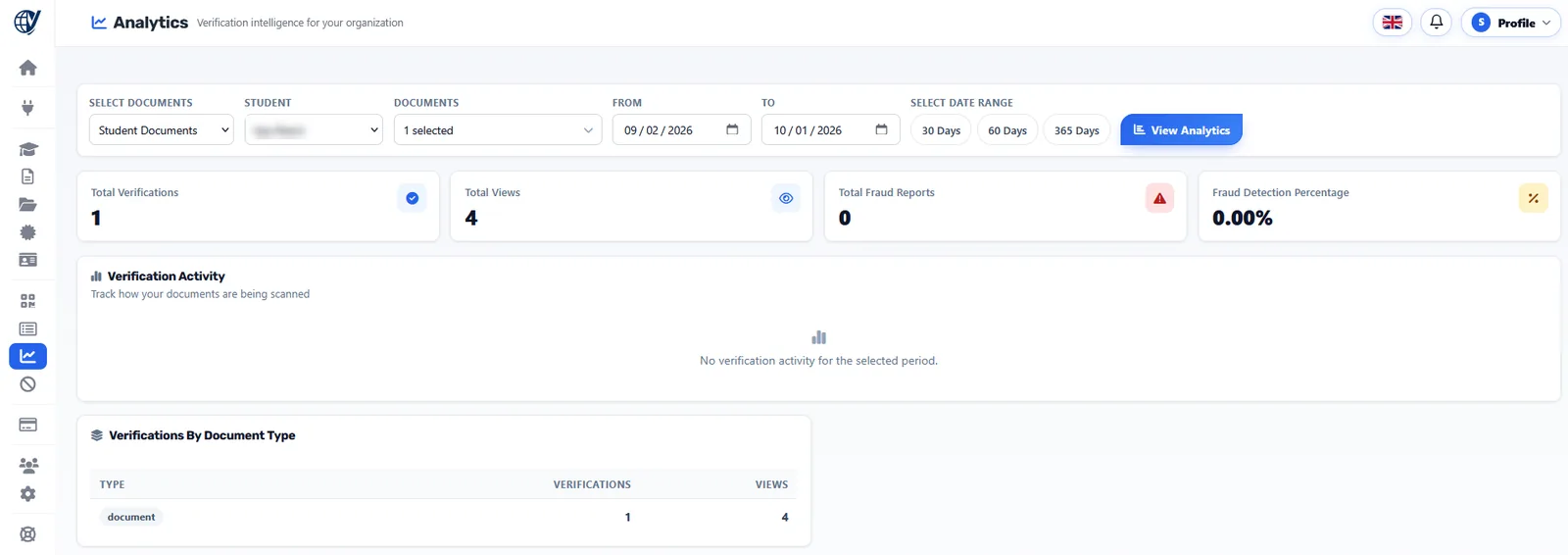
Filter by document type, by student or employee, by documents and by dates, then read the page.
Totals
Total Verifications, Total Views, Total Fraud Reports and the Fraud Detection Percentage — a fraud report is a check that returned an invalid result.
Verification Activity
Verifications by month, for the documents and the period you select.
By Document Type, By Creator, By Student or Employee
Which documents are checked most, who issued them, and whose credentials are being verified.
Verification Details
Every QR scan or verification event, newest first: date & time, document and public ID, result, method, device.
Geographic Distribution
Verification locations by country and region.
Private to your organization
Analytics and logs are visible in your workspace only — never on the public verification page.
Who did what, and when
Each entry keeps the event, the name, the reference, the author and the time: students or employees added, QR codes generated, documents issued, credentials validated, suspended or revoked. Filter by event type and by date.
- Event types: school documents, student QR codes, students added, custom certificates — and their company equivalents
- Status column: Validated, Pending, Revoked
- Verification Details alongside: every check with its result and device
For companies, logs are included from Company Pro; audit logs come with Company Ultimate and Education Elite.
A timeline you can hand to an auditor
From the day a document is generated to the scans that check it — including the check of a revoked credential that comes back invalid and counts as a fraud report — the sequence is there, in order, with authors and times.
What you do with it
Analytics tell you where your credentials are checked and how often; the logs tell you what your team changed. When something must stop being valid, you change the status — and the public page follows from the next scan.
- Spot a document checked far more often than expected
- Follow up a verification that returned invalid
- Prove to a partner when and how often a credential was checked
- Keep a record of who revoked or validated what
See your own verifications
Create your account and open Analytics once your first credentials are checked.